Note: This article talks about an app for Apple's iPad.
Note 2: I would like to express a big thank you to Readdle for providing me with a review copy of PDF expert.
Note 3: I have no intention of expressing any kind of gratitude to Apple as I am yet to get anything from them for free or even low cost.
Once upon a time, as a medical student and a future aspiring physician you had to read numerous books. And then some more. Harrison's Principles of Internal Medicine (2 volumes, 4012 pages, 13.4 lbs!), Guyton's Physiology (1120 pages, 6.1 lbs), The CPS (2960 pages, 8.8lbs), Robbins & Cotran Pathologic Basis of Disease (1464 pages, 7 lbs), etc... The list is endless, but it has one thing in common: each of these books could easily become a deadly weapon or a weightlifters dream. Whichever one of the two options you will find more attractive, you will certainly hate carrying those books around to school, library or your favourite coffee shop. I can guarantee you will just as much hate reading them because of how difficult it is to keep one open and how blue and sore your hands or legs will become after having to the hold the book on your lap. As if the weight wasn't enough of a hurdle, you will very soon realize that the most frequent way you will read these books is by looking things up, not systematically combing from start to finish. But the whole process will take you hours and will be about 50% successful. You will soon stop counting the number of times you had a question; attempted to find the answer in the book; failed miserably; tried to throw the book in frustration; dislocated your shoulder during the attempt; fired up your browser and read the article on Wikipedia.
As most of you have probably heard, several universities, hospitals and government organizations, even the military, are starting to implement content management systems based on the iPad. And that is very good for Apple's stock, indeed. However, how can we, as medical students, residents and budding staff take advantage of the digital revolution?
In this review I'd like to go over my personal favourite and only application I use to read PDF's on my iPad (if you'd like to read about the Digital Age Setup for the Prepared Medical Student, click here), Readdle's PDF Expert.
If you fire up the App Store on your iPad, with the search for "pdf reader", this is what you get:
 |
| App Store listing for PDF reader, 406! titles |
As you can see, you have 406 choices. Although some of them are free, even the first page gives you a good idea of the price range, which goes up to a steep 9.99$. Depending on personal preference, you can try out several apps. However, I feel that without trial versions I had to rely on reviews of these apps on the internet, not wanting to throw away money at 10$ chunks for an electronic test drive. The problem I experienced with all the reviews is that none of them actually addressed in detail my needs: details about the reading experience for large PDFs, annotating them in the context of medical education, and using the online storage synchronization features. Another interesting thing you will notice is the App I am touting as the best is not even in the top search list (it is on the 2nd page, though)
I don't pretend to have done an extensive review of all the apps to provide you with EBAS (Evidence Based App Selection), but most people would agree that there are only a handful of apps that have been reviewed and are considered to be the alternatives for PDF Expert. You can read the article on iMedicalApps (Part 1, Part 2). In my article I am not even mentioning names of other Apps, because all I want to do is to show you why I found PDF Expert to do exactly what I wanted it to do. I will not go over every bell and whistle (of which there are many) in the app.
Now, to the screenshot intensive part of the review.
Main screen aka Welcome Simplicity
 |
| PDF Expert main screen |
 |
| File edit screen |
 |
| File edit screen with non-contiguous selection |
Clicking the edit button in the top right corner will change the screen to the one pictured above. From within this screen I can easily perform typical file operations like select, move, delete and add folder. The second screenshot above depicts three non-contiguous files selected.
 |
| File edit dialog allowing you to rename, delete, share or view revisions |
Clicking on the arrow to the right of the file in the edit mode brings up the pop-up menu above which allows you to rename the file, email it to a friend and surprisingly, pull out revisions of the file from Dropbox.
Connecting to Dropbox and keeping your docs UpToDate
Although I advocate for using the Dropbox sync method, simply because it has been working for me for several years without a hitch, as you can see from the screenshot below you can use a variety of services to satisfy your taste or space requirements. Even the most recent contender, Google Drive is already there.
 |
| Sync options available natively |
After adding your favorite online storage, you have the option of either browsing it like a normal folder structure from within the network tab on left of the main screen or choosing to sync a whole folder to your iPad.
 |
| Sync folder screen |
Choosing to sync the folder will add it to your home screen and mark the files inside with a little green sign indicating the files are being synced, not dissimilar to the one used by Dropbox on your computer. This makes for a consistent and simple workflow that doesn't require you to learn new things to start using PDF Expert.
The other option you have is while browsing your Dropbox folder to simply tap a file you want to read and the following screen pops up.
 |
| Loading file progress bar |
As the progress bar runs down to the end, the file you tapped opens up. One minor annoyance I have with this method is that the whole folder structure from you main Dropbox folder is recreated just for this one file. Eg. if your file is located in Dropbox -> Medical -> Useful articles -> To Read, then the folder Medical will appear on you main screen, inside will be Useful articles. You will have to click through to To Read in order to find the one PDF file you downloaded. I would have preferred to set a predefined folder to dump the downloads or simply store them on the main screen and let me reorganize it.
Reading documents like a big boy
The most important part of the review, or the function this App was built for, is where it shines the most . With an easy tap, you remove all unnecessary elements, leaving only the text (Screen 1 below). As you flick pages, a brief reminder with the current/total page number appears and then fades so as not to interfere with your document (Screen 2 below).
 |
| The reading experience |
 |
| Current/Total page reminder briefly appears at top left when you flip pages |
As I read multiple articles and books on my iPad, having essentially forgone getting physical medical textbooks, I realized that although it is doable to read without zooming, I feel like I am squinting. Depending on your sight and annoyance by not seeing well, you will either not care or love the simple but essential feature I am going to mention: persistent zoom. This means that the zoom level is maintained between pages as you are reading the article. Moreover, switching from bottom right corner brings you right into top left for continuous and coherent flow. Also, navigation is intuitive as well - all you have to do is tap the right or left part of the screen and zoom will scroll past the visible segment. Again, this means that in the typical two column article:
- I zoom on the left most one
- Scroll down it as if I was reading a webpage
- When I reach the bottom, I tap the right side of screen and tap the top of screen to scroll back up (this last bit could have been automated by PDF Expert, unless you drag around the page)
- I find myself at the top of the right column at the perfect zoom level, ready to scroll down
- When I'm at the bottom of the right column, I tap right side again and find myself at the same zoom level on the next page over the left most column.
Another feature I greatly enjoy when reading lengthy documents is the support for bookmarks, you can click on the open book icon (see below) to show all the bookmarks and annotations in the document.
Depending on your learning style, you will rarely highlight a keyword in an article, or highlight everything that has ink in it. Well, digital can be a blessing to both groups. And the implementation of highlighting in PDF Expert is the reason why I decided to use it. It seems natural to me to be reading a book with the highlighter in my hand or nearby on the desk, ready to be used as I come across an important passage. What I've found with all other Apps is that you could only do one or the other - read or annotate, which did not make sense to me. When turning on highlighting in PDF Expert, you choose the highlighter and a color and then read your document. Holding your finger over text for a little bit longer than a simple drag will start the highlighter, brief taps, on the other hand, allow you to navigate and flip pages. Also worth mentioning, highlighting will snap to text, so if you are suffering from alcohol withdrawal while reading the article on PE management, your secret will be safe with PDF Expert. Also worth mentioning is your annotations will show up once you open up the file on your computer in Adobe or other PDF readers. Das is good!
Let me reiterate, the simplicity of the highlighting feature in PDF Expert not only made me use it as my main PDF reader, but actually started me on annotating PDFs electronically. This allows me to open up a previously annotated PDF and flip through my highlights to quickly recall the gist of the article.
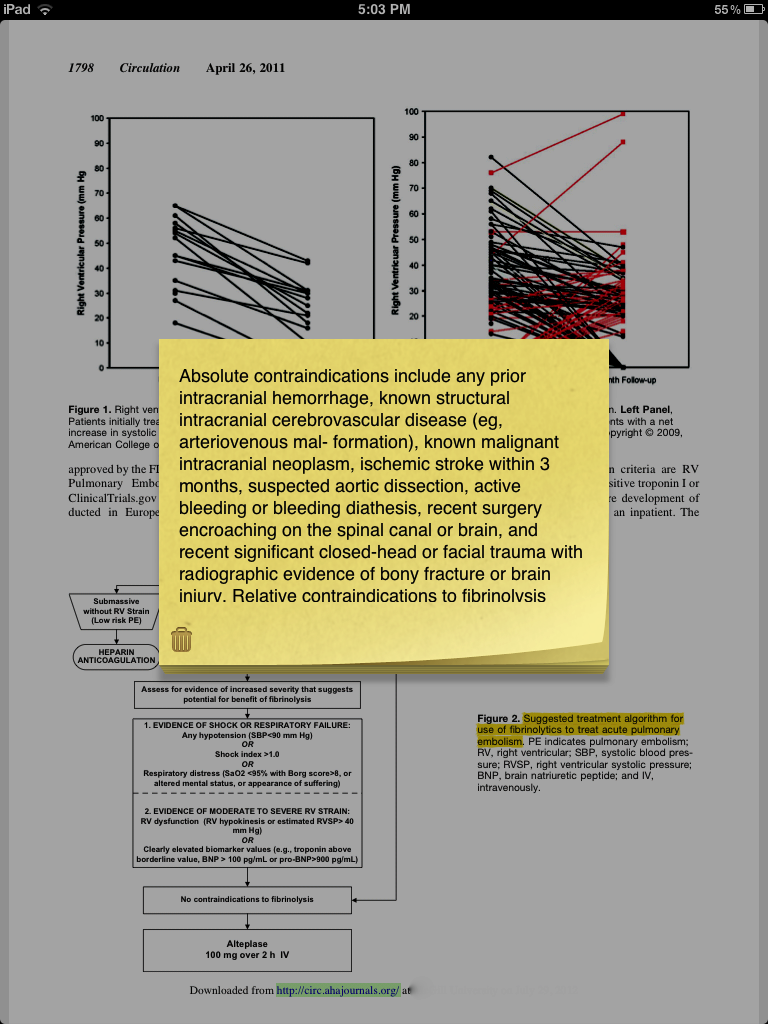
I obviously skipped many of the other annotation features, however, as I said, this is a practical review and not a user manual. Of some value is the note function that allows you to add those cute postet icons arbitrarily on the page with your text that appears in a popup when the icon is clicked.
 |
| The editing toolbar |
 |
| Highlight colors rainbow |
 |
| Add a note with a popup text |
 |
| You can alternatively select the text in normal reading mode and then choose the edit you want to apply |
Searching inside and outside
Editing documents
Security
Presenting your PDFs with a projector
This is a feature I am yet to use. Nevertheless, I feel like it has great potential. If you don't feel like paying Apple for Keynote just to avoid bringing your laptop to presentations (Please don't tell me you make presentations on your iPad - it has about the same level of sophistication as a two year old with a couple of crayons) then saving your presentations to PDF and loading them up to PDF Expert could actually also save you some change (no pun intended).
Forms
Again, I haven't used this feature, but it seems about borderline relevant to mention at the end. As you figured out from the subtitle, you can fill out forms. Now if you have a school/hospital/organization that fancies electronic PDF forms AND you have set up your iPad to print on your home printer (unless your employers also accept electronic forms, which is much rarer than just distributing them) then you are set to go for another feature adventure with the PDF Expert.
Closing remarks
In the tradition of this site, this review is biased, non-inclusive and very graphical. Despite that, I feel the utility of this program justifies the cost for any medical professional using an iPad. Although I would like some minor improvements in the App, like the reading flow automation when zoomed in and drag and drop support for moving files, the features one would buy the app for are simple and efficient. The best qualifier of the usefulness of this app is the fact I use it everyday for my articles, books and references.
I will update the review as I discover new features.
Searching is actually a twofold function. You can:
- Search within a document
- Search within your PDF Expert library. This search allows you to search either file names or file contents.
 |
| Search and find within a file |
 |
| Search all the files stored in PDF Expert |
Once again, simplicity is the name of the game. All you have to do is open a document, and click on the 4 squares in the top menu bar. And boom! You can delete and rearrange pages as you like.
 |
| Bird's eye view on your document |
 |
| Edit toolbar allows you to rearrange and delete individual pages |
This option will finds its admirers among researchers who store patient sensitive information on their iPad. Although PDF Expert does not seem to allow you to encrypt or protect files on an individual basis, it allows you to set a password to open up the app, which should prevent Curious George from snooping around your 20 year old healthy single DD+ breast implant patient database.
This is a feature I am yet to use. Nevertheless, I feel like it has great potential. If you don't feel like paying Apple for Keynote just to avoid bringing your laptop to presentations (Please don't tell me you make presentations on your iPad - it has about the same level of sophistication as a two year old with a couple of crayons) then saving your presentations to PDF and loading them up to PDF Expert could actually also save you some change (no pun intended).
Forms
Again, I haven't used this feature, but it seems about borderline relevant to mention at the end. As you figured out from the subtitle, you can fill out forms. Now if you have a school/hospital/organization that fancies electronic PDF forms AND you have set up your iPad to print on your home printer (unless your employers also accept electronic forms, which is much rarer than just distributing them) then you are set to go for another feature adventure with the PDF Expert.
Closing remarks
In the tradition of this site, this review is biased, non-inclusive and very graphical. Despite that, I feel the utility of this program justifies the cost for any medical professional using an iPad. Although I would like some minor improvements in the App, like the reading flow automation when zoomed in and drag and drop support for moving files, the features one would buy the app for are simple and efficient. The best qualifier of the usefulness of this app is the fact I use it everyday for my articles, books and references.
I will update the review as I discover new features.